
Portrait transfer sheet
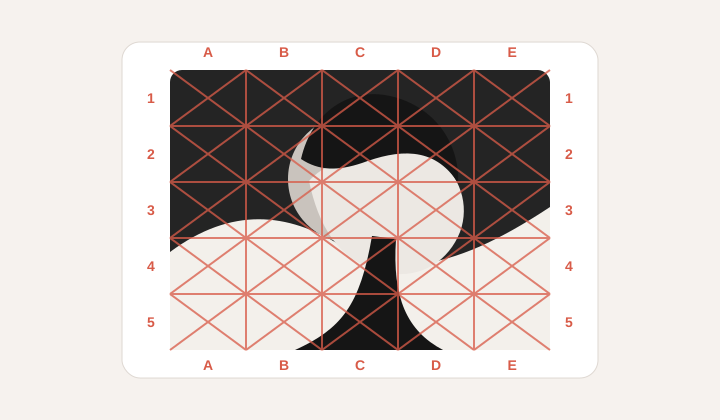
A portrait reference with outer A/B labels and per-cell diagonals, designed for checking facial placement without covering important details.
Drawing grid maker
Crop, rotate, and straighten a reference image, then tune measured grid lines, labels, composition guides, and print settings without uploading the file.
A quiet workspace for artists who need proportion, paper, and labels to agree.
Composition guide
Your reference image and grid will appear here.
Image
1200x800px
Grid
8 x 8
Paper
A4 portrait
Size
210x297mm
Print marks
7 + 7
Draw 7 vertical marks every 23.8mm and 7 horizontal marks every 34.6mm inside the A4 portrait (210x297mm) margin box.
Workflow
A drawing grid is useful when the goal is not to decorate an image, but to make proportion easier to see and transfer. GridMaker keeps that workflow simple: place a measured grid over a reference, choose a paper size, move labels outside the artwork, add optional diagonals inside every cell, then download or print the result. The approved crop becomes the exact source for every preview and download. Because the image is processed in the browser, private studies, client references, classroom handouts, and unfinished sketches stay on your device while you prepare a clean guide.
A portrait reference with outer A/B labels and per-cell diagonals, designed for checking facial placement without covering important details.
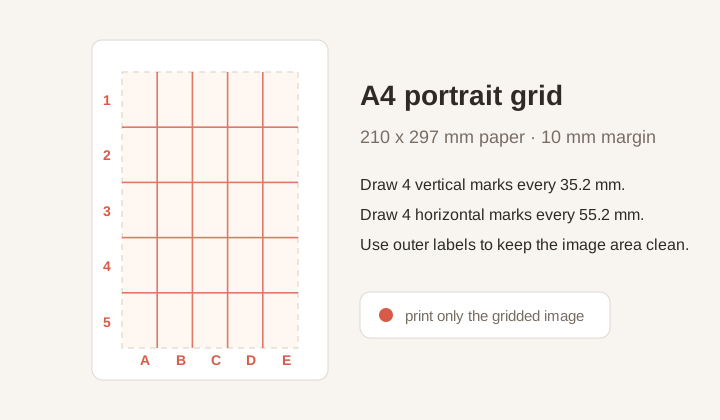
A paper-aware layout that shows how the same grid becomes measured marks inside an A4 or custom margin box.
Why it helps
Artists often struggle less with a whole portrait than with judging where one eye, shoulder, window edge, or shadow actually sits. The grid method breaks that judgment into small cells. Instead of asking whether an entire drawing is correct, you compare A3 to A3, D6 to D6, and so on. Outer labels keep the reference readable, while diagonal guides make angles and center relationships easier to spot.
The tool is designed for practical studio work. Crop, rotation, and straighten controls clean up the reference first; rows, columns, line weight, opacity, black and white mode, rule-of-thirds, and golden-ratio guides then support the actual drawing decision.
This also makes the method easier to teach. A student can describe a problem cell instead of saying the whole drawing feels wrong. A teacher can point to one coordinate and explain how the contour crosses the box. That shared language turns a subjective correction into a visible, repeatable step.
Paper aware
A grid that looks correct on screen can be frustrating when it prints at the wrong size. GridMaker includes A-series paper, Letter, Legal, portrait and landscape orientation, margin controls, and custom millimeter dimensions. The instructions under the preview translate the digital grid into real marks, so you know how far apart to draw vertical and horizontal lines on the target paper.
Custom size is especially useful for canvas boards, sketchbook pages, murals, and non-standard panels. Enter the width and height in millimeters, set a margin that leaves room for tape or notes, and the tool recalculates each cell. The result is a reference image plus a physical measuring plan, not just a screenshot with lines.
Clean output
The print button opens a document containing only the gridded image, sized against the chosen paper guide. Browser page chrome, controls, upload panels, and explanatory text are left behind. That makes the workflow closer to a print-ready studio sheet than a normal web page printout.
PNG and JPG exports are useful when you want to keep a digital copy, annotate it in another app, or send a marked reference to a student. Cropping, rotation, labels, diagonals, composition guides, grayscale, brightness, and line color are rendered into the approved result.
Workflow
Start with a reference image, decide how much structure you need, then export a guide that matches either your digital workspace or your physical paper.
No. The page is built for proportion transfer. It adds measured rows, columns, labels, diagonals, paper size, and print guidance so the grid can be recreated on paper or canvas.
No. The image is read and rendered in your browser. The server does not need the file to create the preview, PNG, or printable image document.
Outer labels keep the artwork cleaner. You can still reference cell names, but the labels do not cover eyes, edges, small objects, or details you are trying to copy.
Yes. Choose custom paper, enter width and height in millimeters, and GridMaker recalculates drawable area and cell spacing from those dimensions.
Use diagonals when angles matter: head tilt, perspective edges, hands, folds, product silhouettes, or architectural lines. They give every cell a clearer directional reference.
Use Print / PDF for a paper sheet, PNG for lossless editing, or JPG for a smaller shareable file. Every format uses the applied crop, rotation, grid, and composition guide.